
1 Your Profile Page
Your Profile page is your account management hub. From here you can update personal details and manage security settings.
Personal Info
Name, username, and basic account details
Email Address
Your login email and communication preferences
Password
Update your password for account security
Discord
Link or unlink your Discord account
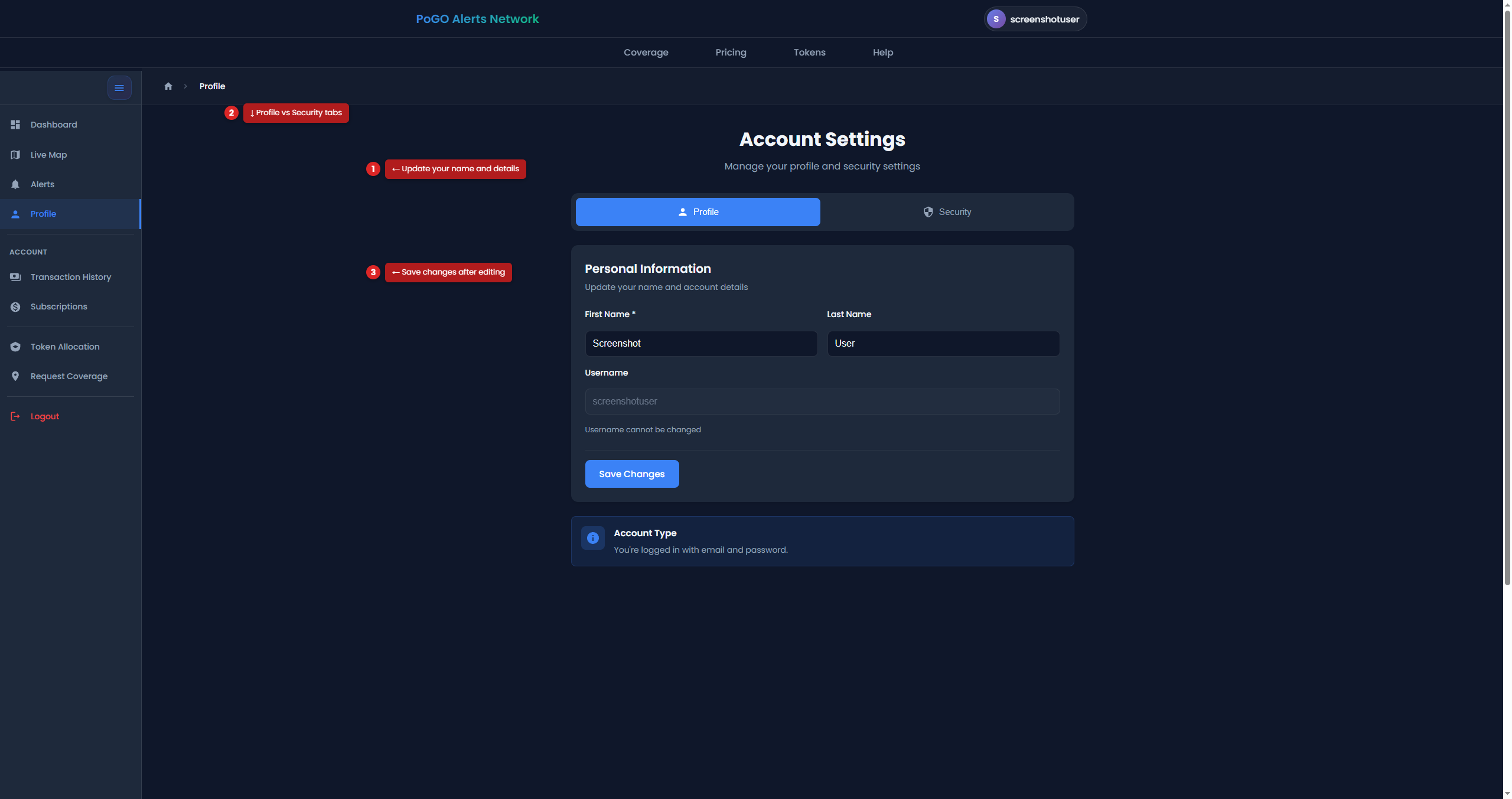
Your Profile page - manage all your account settings in one place
2 Updating Personal Information
You can update your personal details at any time from your profile page.
First Name
Your first name, displayed in greetings and communications.
Optional - can be left blankLast Name
Your last name for account identification.
Optional - can be left blankUsername
Your unique username displayed in the community. Cannot be changed after registration.
Set during registrationHow to Update
- Go to your Profile page
- Find the "Personal Information" section
- Edit the fields you want to change
- Click "Save Changes" to apply your updates
3 Changing Your Email Address
Your email address is used for logging in (if using email/password authentication) and receiving important account notifications.
Navigate to Profile
Go to your Profile page and find the "Email" section.
Enter New Email
Type your new email address in the email field.
Verify Your Password
For security, you'll need to enter your current password to confirm the change.
Confirm Change
Click "Update Email" to save. You may receive a verification email at your new address.
4 Changing Your Password
Keep your account secure by using a strong, unique password.
Go to Profile
Navigate to your Profile page.
Find Password Section
Look for the "Password" or "Security" section on your profile.
Enter Current Password
Type your current password to verify your identity.
Enter New Password
Type your new password. It must be at least 6 characters long.
Confirm New Password
Re-enter your new password to confirm it matches, then save.
Forgot Your Password?
If you've forgotten your password, you can reset it from the login page. Click "Forgot Password?" and enter your email address. We'll send you a link to create a new password.
5 Discord Connection
Your profile shows your Discord connection status. From here you can link or unlink your Discord account.
When Linked
You'll see your Discord username and avatar. You can click "Unlink" to disconnect your Discord account from PoGO Alerts Network.
When Not Linked
You'll see a "Link Discord" button. Click it to connect your Discord account and enable DM alerts.
6 Troubleshooting
I can't change my email
Email changes require your current password for verification. If you signed up with Discord OAuth and don't have a password, you'll need to set one first using the "Add Password" option on your profile.
I forgot my password and can't log in
Click "Forgot Password?" on the login page and enter your email address. We'll send you a link to create a new password. If you originally signed up with Discord, you can still log in with Discord OAuth.
My profile changes aren't saving
Make sure you're clicking "Save Changes" after making edits. Check for any error messages that might indicate required fields or validation issues. Try refreshing the page and attempting again.
I want to delete my account
You can request account deletion from the Security tab of your profile, or by emailing [email protected]. We action requests within 30 days. Note that this action is permanent and will cancel any active subscriptions.